WhatsApp Shared Team Inbox: One Number, Your Whole Team
One WhatsApp number, ten agents, zero collisions. Here's how a shared team inbox actually works on the WhatsApp Business Platform, and what it fixes.
A WhatsApp shared team inbox connects your verified WhatsApp Business number to software — not a phone — so any number of teammates can log in, see the same conversation history, and reply as the business at the same time. It replaces the classic small-business trap of one WhatsApp number tied to one person's device with real assignment, internal notes, and collision avoidance, all without giving up the number your customers already know.
This is a deep dive on the WhatsApp Business number/API side specifically: multi-agent login, assignment, and coexistence on your WhatsApp Business Platform number. If you're trying to unify WhatsApp with email, live chat, Instagram and every other channel your customers use, read the shared team inbox guide — that's SabNode's broader omnichannel inbox, SabChat. Everything below is scoped to WaChat, SabNode's WhatsApp module.
The problem: your WhatsApp number is only as available as one phone#
Every business that starts on WhatsApp hits the same wall eventually. You register a number on the free WhatsApp Business app, install it on a phone — usually the owner's, or whichever staffer set it up first — and it works beautifully for exactly as long as one person can keep up with the messages. Then the business grows.
Orders come in faster than one person can answer. You hire a second support person, then a third. And that's where the cracks show. The WhatsApp Business app lives on a device. Whoever holds that device is the number, for all practical purposes. If they're on a call, at lunch, or asleep, the number is offline even though the business is very much open. If they leave the company, the number's message history and identity leave with the phone unless someone very deliberately backs it up and migrates it — a process most small teams have never rehearsed and get wrong under pressure.
This isn't a hypothetical edge case; it's the single most common reason businesses go looking for "WhatsApp for teams" in the first place. A number that only one person can answer isn't a business channel. It's a personal chat that happens to have a business name attached to it.
The instinct, when a second person needs to help, is usually to try one of two workarounds. Both feel free. Neither actually works.
Workaround one: share the login and pass the phone around#
The simplest fix looks like handing the phone (or its passcode) to whoever's turn it is to answer. In practice this means a physical device gets physically passed between desks, or the app's session gets shared across a browser extension nobody officially sanctioned. There's no record of who answered which message. There's no way to divide the queue by product line, shift, or skill. And there's a very real risk that the person currently holding the device is the only person who can answer at that moment — you've relocated the bottleneck, not removed it.
It also fails a basic accountability test. If a customer complains about a rude or wrong reply, you often can't tell which team member sent it. If someone leaves the company holding institutional knowledge of "how we usually answer this," none of it is captured anywhere a shared inbox would capture it — it just walks out the door with them.
Workaround two: WhatsApp Business app's own multi-device linking#
The WhatsApp Business app does support linking a handful of additional devices — a laptop browser, a tablet, a desktop client — to the same account, using WhatsApp's multi-device architecture. This is a genuine feature, and it's more capable than most people give it credit for: several people can technically have a linked session open at once.
But it's solving a different problem than the one a growing team has. Multi-device linking was built so one person can use WhatsApp on their phone, laptop and tablet without needing the primary device online. It doesn't give each linked session its own identity — everyone linked in is transparently "you." There's no assignment, no internal notes only staff can see, no reporting on who answered how many chats or how quickly, and no way to say "Priya can see contact numbers, but a new trainee can't export the contact list." It also caps out at a small number of simultaneously linked devices — comfortably enough for one busy owner, nowhere near enough for a real support team with shifts, roles, and turnover.
Both workarounds share the same root cause: they treat WhatsApp as a device-bound consumer product, because that's exactly what the free Business app is. Getting past it means moving the number itself onto different infrastructure.
What actually changes on the WhatsApp Business Platform (Cloud API)#
The fix isn't a clever trick inside the free app — it's putting your number on the WhatsApp Business Platform, generally known as the Cloud API. This is a fundamentally different product from the WhatsApp Business app, even though the two are easy to confuse because they share a name and a green logo.
On the Cloud API, your number isn't registered to a physical device at all. It's registered to software — a platform like SabNode's WaChat — that talks to WhatsApp's servers on your behalf. Because the "device" is now a piece of business software rather than a phone in someone's pocket, the number of people who can log in and act on that number stops being a hardware limit and becomes a software decision. WaChat can seat two agents or two hundred; the constraint is your plan and your team size, not how many phones you're willing to buy.
An "agent" on a shared WhatsApp inbox isn't a device and isn't a WhatsApp concept at all — it's a login to your business software. WhatsApp only ever sees one connection: your number, talking through the platform. What happens behind that connection — how many people are logged in, who's assigned what, who said what — is entirely up to the inbox software sitting in front of it.
Every agent who logs into WaChat sees the exact same conversation list, the same message history, and the same customer context, in real time. There's no "whose phone is this" question anymore, because the number was never tied to a phone in the first place. A customer who has messaged your business for two years keeps talking to the same number and gets the same continuity, even as the humans behind that number change entirely.
Three ways to run one WhatsApp number, compared#
The table below is the comparison that matters when you're deciding what to fix first: a phone literally handed between people, the WhatsApp Business app's own multi-device linking, and a true shared inbox running on the Cloud API.
| Capability | One phone passed around | WhatsApp Business App multi-device | Shared team inbox on the Cloud API |
|---|---|---|---|
| Multiple people replying at once | No — one holder at a time | Limited — a few linked devices, one identity | Yes — any number of named agents |
| Conversation assignment | None | None | Yes, per conversation or team |
| Internal notes / @mentions | None | None | Yes, invisible to the customer |
| Collision avoidance | No — duplicate replies happen | No — same account, no visibility of who's typing | Yes — live indicator when another agent is replying |
| Roles and permissions | None — whoever has the phone has everything | None — one shared identity | Yes — per-role access to numbers, exports, broadcasts |
| Reporting on response time / volume | Effectively none | Effectively none | Yes, per agent and per team |
| Number tied to a specific device | Yes — the phone is the number | Mostly — one primary phone required | No — the number lives on the platform |
| Survives an agent leaving the company | Poorly — history often stuck on their phone | Poorly — same issue | Cleanly — history stays on the platform, not the person |
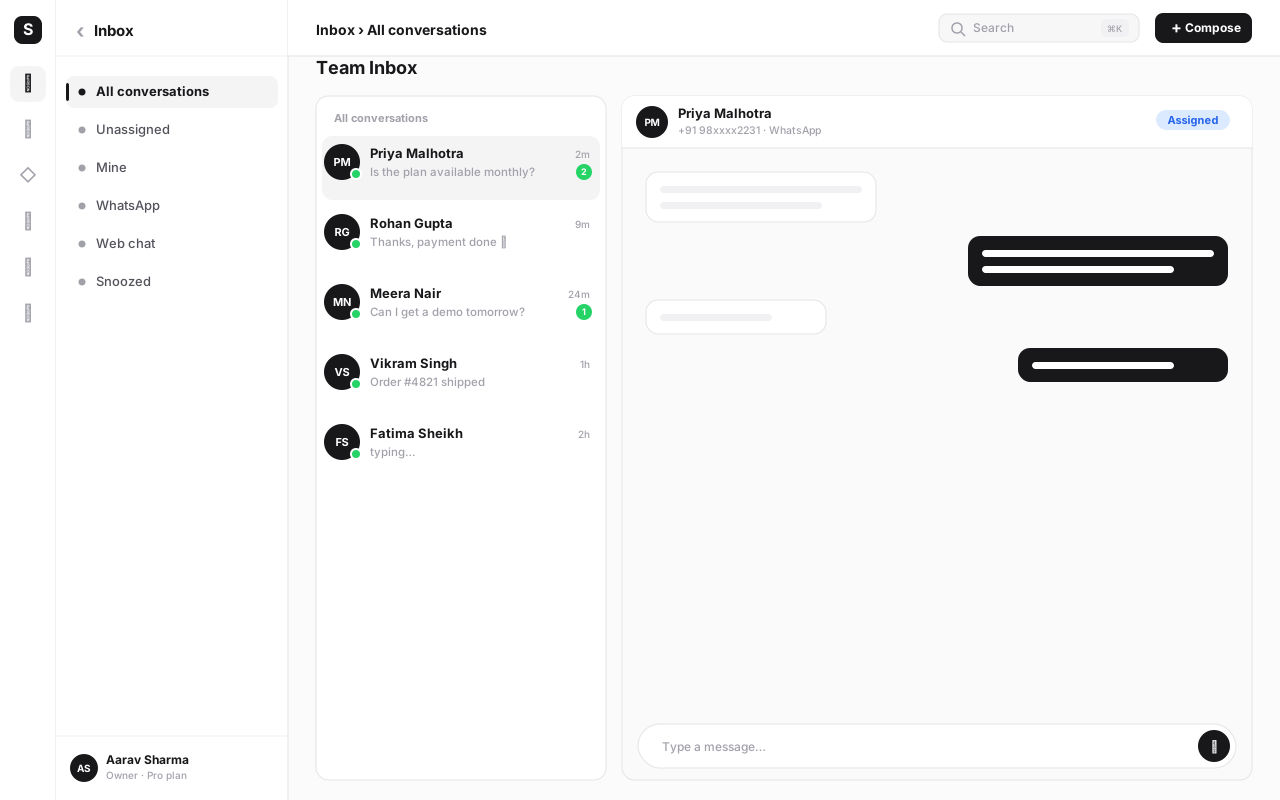
Assignment, notes, and collision avoidance: the layer that makes it a team tool#
Multi-agent login is the foundation, but it's not what makes an inbox feel organised — that comes from the layer built on top of it. This is where a shared inbox earns its name.
Assignment turns an incoming WhatsApp message into an owned piece of work rather than a message sitting in a pile everyone can see and no one has claimed. A conversation can be routed to a specific agent, dropped into a team queue (Sales, Support, Billing), or auto-assigned round-robin so load is spread evenly. Anyone glancing at the inbox can immediately answer "who's handling this customer" — a question that has no answer at all on a passed-around phone.
Internal notes and @mentions let the team talk about a conversation without the customer ever seeing it. An agent can flag a colleague — "can you confirm this refund amount before I reply?" — right inside the thread, next to the customer's messages, with full context attached. This single feature usually eliminates the parallel Slack/Excel/WhatsApp-group chatter teams build to compensate for a channel that has no internal layer of its own.
Canned or quick replies save agents from retyping the same answers to the same questions — shipping timelines, store hours, a refund policy — while still letting them personalise details before sending. On a shared inbox these are written once and used by the whole team, so a new hire answers as consistently as your best agent on day one.
Status tracking — open, pending, resolved — gives the queue a shape. A supervisor can see at a glance how many conversations are genuinely waiting on the business versus waiting on the customer, and nothing quietly falls through the cracks because it never had a state to fall out of.
Collision avoidance is the detail that most teams don't think to ask about until it embarrasses them. Because a shared inbox lets more than one agent open the same conversation, it also has to stop two people from answering the same customer at the same moment with two different answers. A live "agent X is viewing this" indicator, or a soft lock while someone is actively typing a reply, makes the in-progress work visible so a second agent waits or coordinates instead of firing off a conflicting message a few seconds later. It's a small piece of UI that prevents a genuinely bad customer experience — the kind where a customer gets two contradictory replies within a minute and reasonably concludes nobody's actually in charge.
None of these five things are WhatsApp features. WhatsApp itself has no concept of assignment, internal notes, or status. They exist entirely in the software layer sitting on top of your Cloud API connection — which is exactly why the choice of platform matters as much as getting API access in the first place.
Roles and permissions: governance the consumer app has no concept of#
A phone passed around, or even a multi-device-linked WhatsApp Business app, has exactly one access level: whoever's logged in can see everything and do everything. There's no such thing as a trainee who can reply to customers but shouldn't see their raw phone numbers, or an agent who should never be allowed to trigger a bulk broadcast to your whole contact list.
Because a shared inbox sits on the Cloud API as real business software, it can enforce the kind of role-based access every other serious system in your company already has. Typical governance controls include who can view a customer's actual phone number versus a masked identifier, who can export contact lists or conversation data, who can send broadcast campaigns to opted-in lists, and who can manage routing rules, canned replies, and team membership itself. None of this is a WhatsApp rule — it's a policy you set inside your inbox software, and it's simply not possible to set on a device-bound number at all.
| Typical role | Reply to customers | See raw contact phone numbers | Export contacts / chat data | Send broadcasts | Manage team & routing rules |
|---|---|---|---|---|---|
| Owner / Admin | Yes | Yes | Yes | Yes | Yes |
| Supervisor / Team lead | Yes | Yes | Limited, with approval | Limited, with approval | Within their own team |
| Agent | Yes | Usually yes | No | No | No |
| Trainee / restricted seat | Yes, monitored | Optional, masked | No | No | No |
Treat that table as a starting template rather than a fixed rulebook — the right split depends on your industry, your data-protection obligations, and how much you trust a given seat on day one versus after three months. The point isn't the exact grid; it's that a Cloud API-based inbox lets you have a grid at all, where a device-bound number simply can't.
It's much easier to loosen a new agent's permissions after they've proven themselves than to claw back access once someone's gotten used to exporting contact lists or firing broadcasts on their own judgment. Default new seats to the narrowest role that lets them do their job, and widen deliberately.
Coexistence: keeping the native app feel without losing the team#
One legitimate objection to all of this: a manager or owner who has run the business on the WhatsApp Business app for years often likes that app. It's fast, familiar, and doesn't require learning new software. Moving the whole team to a shared inbox can feel like asking that person to give up a workflow they're genuinely comfortable with.
Meta's answer to this is a capability generally referred to as coexistence. It lets a business keep using the WhatsApp Business app natively on one phone — typically for exactly that owner or manager — while the rest of the team works the very same number from an API-based shared inbox like WaChat, with both sides seeing the same conversation history. Nobody has to choose between "the app I know" and "the team tool we need." The manager keeps their native app on their phone; the support team works the shared inbox on their laptops; the customer just sees one continuous conversation, unaware that two different pieces of software are looking at it from either side.
This matters most during a migration. Businesses rarely move a number from the consumer app to the Cloud API in one clean weekend — there's usually a transition period where the person who's used to the app wants to keep using it a little longer while the rest of the team gets comfortable in the new inbox. Coexistence is built for exactly that overlap, not as a permanent architecture you're meant to run forever. Availability and exact setup steps for coexistence can vary by provider and region, so confirm the current rollout with your BSP before promising it to a manager as day-one functionality.
Treat coexistence as a temporary comfort measure while a team transitions onto the shared inbox, not as a long-term substitute for it. The manager still only sees what the app shows them — no assignment, no internal notes, no permissions — so leaving them there indefinitely just recreates a smaller version of the one-phone problem for that one person.
How to set up a shared team inbox on your WhatsApp number#
Moving from a device-bound number to a proper shared inbox is a sequence, not a single toggle. Here's the order that avoids the most common stumbles.
- Confirm your number can move to the Cloud API. A number must not be actively logged into the regular consumer WhatsApp app at the same time you connect it to the Business Platform (coexistence aside). If your team is currently using it on the free Business app, plan the cutover rather than trying to run both blind.
- Choose a provider and complete Meta's embedded signup. Connect the number through WaChat's embedded signup flow, which walks you through linking a Meta Business account, verifying the number, and setting a display name.
- Decide who gets a seat, and what role they hold. List every person who needs to reply — support, sales, a manager who wants oversight — and assign each the narrowest role that covers their job before you invite anyone.
- Build your routing rules before you invite the team. Decide whether conversations route by team (Sales vs Support), round-robin across available agents, or land in one shared queue agents claim manually. Setting this up first means day one doesn't start as a free-for-all.
- Write your first canned replies and labels. Draft answers for your five or six most common questions, and set up labels for the conversation types you'll want to filter by later — new lead, order status, complaint, and so on.
- Invite your agents and run a short walkthrough. Show the team how assignment, internal notes, and status changes work before customers start arriving in the new inbox — five minutes now avoids a week of confusion later.
- Decide if a manager needs coexistence. If someone genuinely wants to keep the native app feel during the transition, confirm coexistence availability with your provider and set it up for that one device rather than defaulting the whole team to it.
- Connect your CRM and other systems. Wire the inbox to your CRM so each conversation logs against the right contact automatically, and both sales and support work from the same customer history.
- Run a short overlap period before retiring the old device. Keep the original phone available (read-only, if possible) for a few days so nothing from the transition window gets lost, then fully retire it once the team is confident in the new inbox.
- Review response times and ownership weekly, at first. Check who's answering how fast, whether any conversations are stuck unassigned, and whether your routing rules match how the team actually works — then adjust.
Give your WhatsApp number a real team, not one phone
WaChat connects your WhatsApp Business number to a shared inbox with assignment, internal notes, collision avoidance and role-based permissions — plus templates, broadcasts and a chatbot builder, all tied to the same CRM record as every other channel.
Common mistakes to avoid#
- Assuming the WhatsApp Business app's linked devices count as a team inbox. Linking a laptop or tablet gives one person more places to answer from — it doesn't create separate agent identities, assignment, or permissions. Don't mistake convenience for structure.
- Moving the whole team to the Cloud API with no routing plan. If every agent can see every conversation with no assignment logic, you've just moved the pile-up online instead of solving it. Decide how work gets divided before go-live, not after.
- Giving every seat the same permissions as the owner. A shared inbox's biggest governance advantage disappears the moment every agent can export contacts or fire a broadcast. Set roles deliberately from day one.
- Leaving coexistence on indefinitely "just in case." It's meant to smooth a transition, not replace it. A manager left permanently on the app misses assignment, notes and permissions the rest of the team relies on.
- Skipping the CRM connection. An inbox that isn't tied to the customer's record turns every reply into a fresh guess about who this person is and what they've bought or asked before. Connect it early.
- Not training agents on collision avoidance before launch. If nobody knows what the "someone else is replying" indicator means, they'll ignore it and duplicate replies happen anyway. A five-minute walkthrough fixes this.
- Forgetting to retire the old device cleanly. If the original phone stays logged into the consumer app after the number's been moved, you risk conflicting sessions and confused customers during the handover window.
- Treating this as a one-time setup instead of an ongoing routine. Routing rules, roles, and canned replies all need revisiting as the team grows — what worked for three agents rarely fits fifteen without adjustment.
Conclusion#
The problem a WhatsApp shared team inbox solves is narrow but painful: a WhatsApp Business number is only as available as the phone it's registered to, and that stops scaling the moment more than one person needs to answer customers. Moving that number onto the WhatsApp Business Platform breaks the tie to any single device, and a proper shared inbox — assignment, internal notes, canned replies, status tracking, collision avoidance, and role-based permissions — turns "many people can technically log in" into an actual team workflow. Coexistence gives you a graceful bridge if a manager wants to keep the native app a little longer, but the destination is the same: one number, worked by a real team, with governance the consumer app was never built to offer.
If WhatsApp is the only channel you need to fix, WaChat's shared inbox is the direct route there — connected to templates, broadcasts, a chatbot builder, and the same CRM record every other SabNode module writes to. If you're consolidating WhatsApp alongside email, live chat, and social messaging into one queue, read the shared team inbox guide for SabNode's broader omnichannel inbox, SabChat. Either way, start from the foundation covered in the WhatsApp Business API guide, then start free or see pricing when your team's ready to stop passing a phone around.
Frequently asked questions
What is a WhatsApp shared team inbox?
A WhatsApp shared team inbox is software that connects to your verified WhatsApp Business number through the WhatsApp Business Platform (Cloud API) and lets any number of team members log in, see the same conversation history, and reply as the business — with assignment, internal notes, canned replies and collision avoidance layered on top. It replaces the old pattern of one phone, one login, one person.
Can multiple people reply from one WhatsApp Business number at the same time?
Yes, but only if the number is connected through the WhatsApp Business Platform (Cloud API) via a provider like WaChat. The free WhatsApp Business app is built around one primary phone with a handful of linked companion devices for one user — it was never designed for a real team with separate identities, roles and reporting.
What's the difference between WhatsApp Business App multi-device and a shared team inbox?
Multi-device on the WhatsApp Business app lets one person open the same chats on a phone plus a few linked devices like a laptop browser or desktop app — still one identity, no assignment, no permissions. A shared team inbox on the Cloud API gives every agent their own login, assigns conversations to specific people, tracks status, and reports on who answered what and how fast.
What is WhatsApp coexistence and how does it help my team?
Coexistence is a Meta capability that lets a business keep using the WhatsApp Business app on one phone — often for an owner or manager who wants the native app feel — while the rest of the team works from an API-based shared inbox on the very same number, seeing the same conversation history. It's a bridge for businesses migrating from the app to the API without losing a manager's preferred workflow.
Does a WhatsApp shared team inbox connect to my CRM?
On WaChat inside SabNode, yes — every WhatsApp conversation is tied to the contact's CRM record, so an agent sees past deals, orders and support history alongside the live chat, and the conversation itself logs back to the customer's timeline automatically.
Is a WhatsApp shared inbox different from an omnichannel inbox like SabChat?
Yes. WaChat's shared inbox is scoped to your WhatsApp Business number specifically. SabChat is SabNode's broader omnichannel inbox that merges WhatsApp with email, live chat, Instagram and other channels into one queue. If you only need WhatsApp sorted out, WaChat's inbox is the right layer; if you're consolidating every support channel into one workspace, read the shared team inbox guide instead.
How do I stop two agents replying to the same WhatsApp customer at once?
This is called collision avoidance. A proper shared inbox shows a live indicator — a typing dot, an "agent X has this open" flag, or a soft lock — the moment a second agent opens a conversation someone else is already answering. It doesn't block them outright, but it makes the in-progress reply visible so nobody sends a contradictory message a few seconds later.